


Licenses and updates (v3)
You will always find your license ID and when your license is expiring under the license tab.
More details and when your license need to be extended or changed - go to My Page

Purchase of licenses
The program file that you download and install is a complete version. You also download a second file (your license file). This determines the version that will run on your Windows computer. Your license is handled through My Page where you have several choices.
By clicking for update you will get to the bank in two steps:

Select your desired program version from the alternatives presented (pricelist). If you have days left on your present license these days will be added to your new licens time.
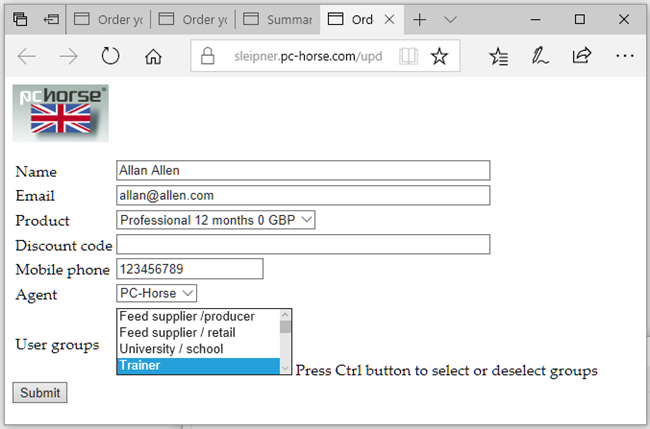
The fields should be filled in with your details, if they need to be changed, do that.
You will receive a reminder 7 days before your license expires via email or SMS. It is therefore important that you provide correct contact information (email and mobile phone number) when you purchase your license.
SUBMIT and check the feedback page.
Press CONTINUE and complete the payment process as usual. Pay with established cards.

After the payment process is done you will recieve your new license code.
Copy and paste into the yellow field. Activate the license.
