





Feed lists
Start by selecting a feed list through double-clicking on the feed list icon in the tree-view in the main screen. The feed screen will now show, starting with the Information tab. We recommend that you make your changes in the "Stable feed lists", or in your own defined feed lists. In this way, you will keep your guaranteed feed list intact, and can use it as a reference feed list. In your stable feed lists you can simplify your work by erasing all feeds you are not using on a daily basis.
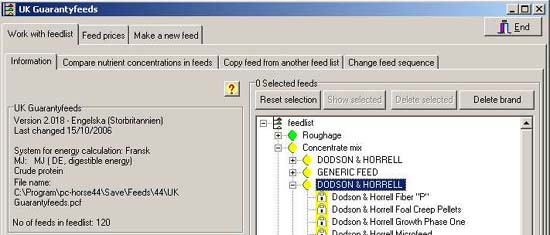
In the box on the left you can read information about the feed list and the feeds it organises. The tree-view on the right is used to manipulate the feeds in that list. Click on the plus or minus signs to expand or contract the list.
Select feeds by clicking one or more feeds. Selected feeds are shown with an additional "V" icon.
Selected feeds can be edited or deleted. It may be convenient to delete feeds that you are not going to use from your stable feed list. Use the "UK Guaranteed feeds" list as your reference feed list. If you accidentally erase your Guaranteed feed list, a copy will be made available. You may also download a new one from our website. By double-clicking on a feed you will be transferred to a screen where you can inspect and edit the nutrient composition of the feed (see later). Click the "OK" button to go back to the information tab.
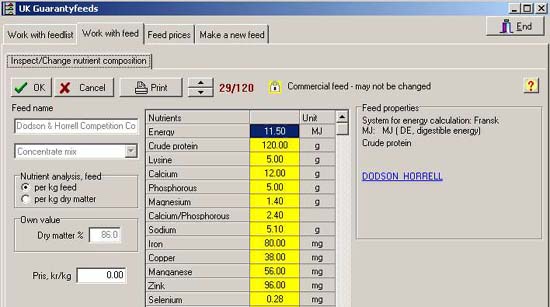
If the feed list you opened belongs to a stable, the feeds shown will be available for the horses in that stable. Horses can be allocated different rations, but the nutrient content and feed prices in the stable will remain the same.


