

How to use our FeedEditor
Note: The FeedEditor is a tool strictly for our participating Feed companies.
Get help by clicking 
1. Start on the start page by entering basic information by selecting Country code and basic contact information on yourself (in charge of feed lists for PC-Horse)

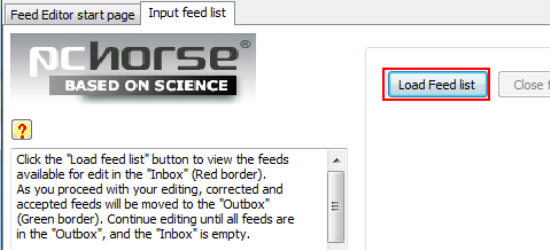
2. Select tab "Input feed list" and click button "Load Feed list"
3. Select the feed list (we have sent to you). It should be located directly under your country directory (i.e. 46 for Sweden, 44 for UK, etc) inside the Feed editor directory.
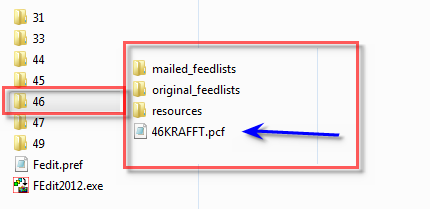
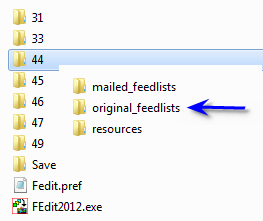
Once you have opened, or edited, this feed list a safe copy of the original will be saved in the directory "original feedlists".
4. Select "Load Feed list" and a list over all included feeds appears in the red box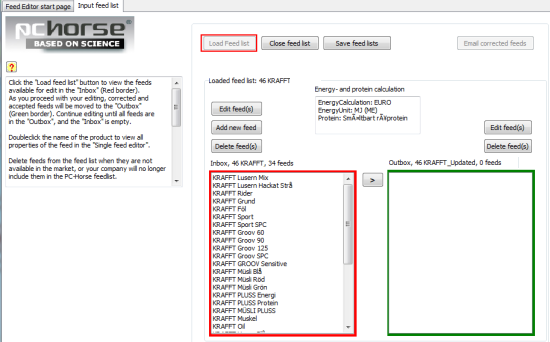
5. Select the feed(s) you want to edit (use Shift or Ctrl-command to make mutliple choice)
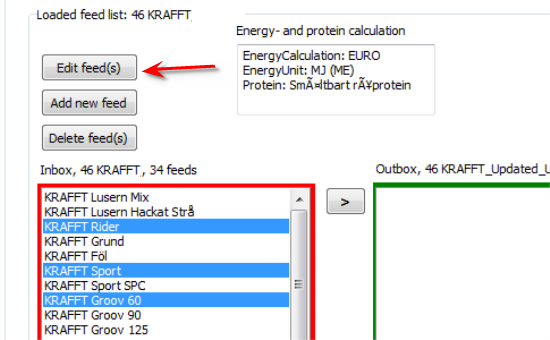
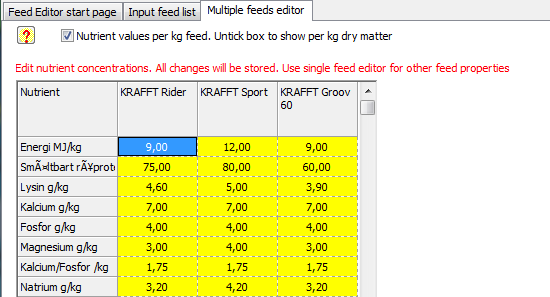
6. Edit values to be changed
7. When finished - click button "Accept changes"
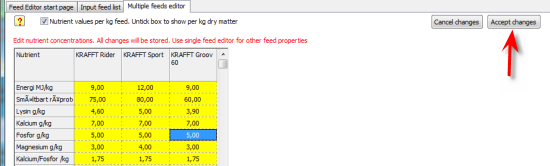
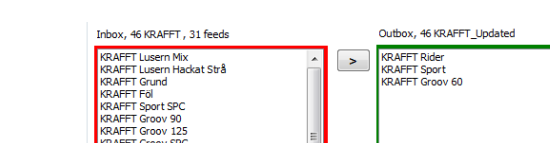
8. The edited feeds appears in the green box. Note, the are now beeing deleted from the "old" list in the red box.
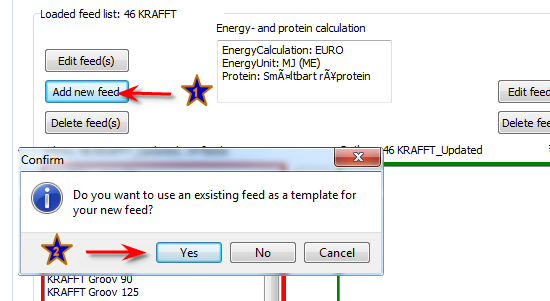
9. Create a ned feed. Click button "Add new feed". You may use another feed as template for the new.
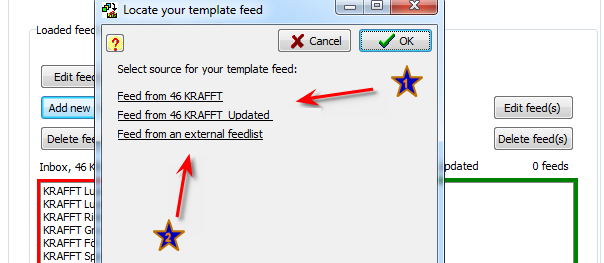
10. The editor will present feed lists within the working area (1) or give you the option to import from a feed list located somewhere else on your computer (2)
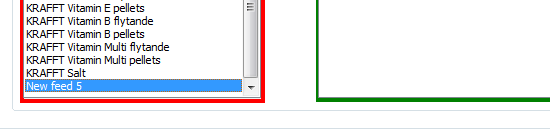
11. Once you have selected which feed you are going to use as template - a "New Feed" will appear in the bottom of the list in the red box. Click it.
12. Start with basic data for the feed. Please note our standard for how the product name should be typed (BRAND Productname).
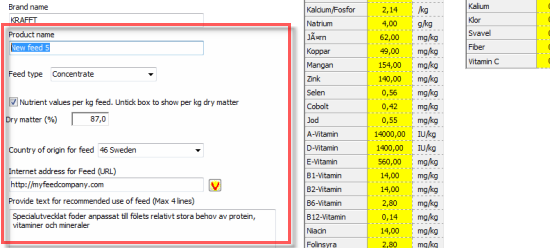
13. Enter values. The new nutrients in the right box will be implemented step-by-step in PC-Horse during 2012. Don´t hesitate to ask questyions or giving us feedback dureing this process.
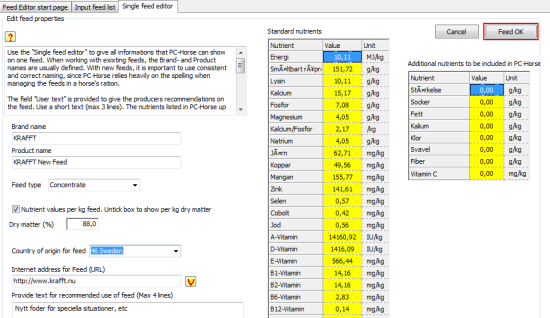
14. Once you have clicked "Feed OK" the new feed will appear in the green box. Note that you can edit feeds in both boxes by doubleclicking them.

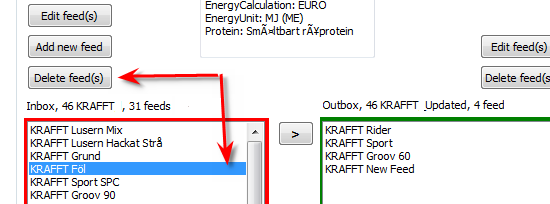
15. Delete feeds that no more should be published to the market
16. Select the rest of feeds you want to be published
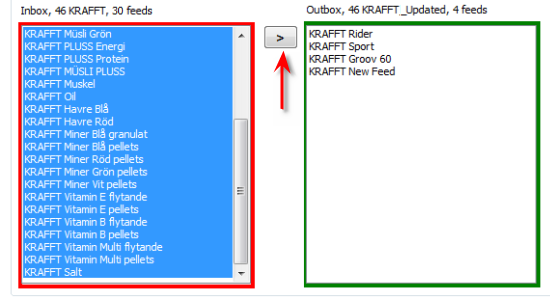
17. All feeds to be published in the new feed list are now in the green box (the updated list). Note that your old list is now empty.
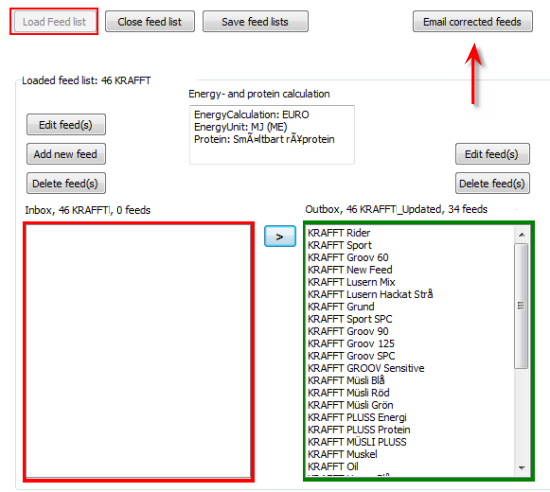
18. Giving your list the final touch. Sort the first by feed type and the move each individual feed to the position you want it. In the left corner of the page you can see the where the the new feed list is stored as default. You may want it for later use.
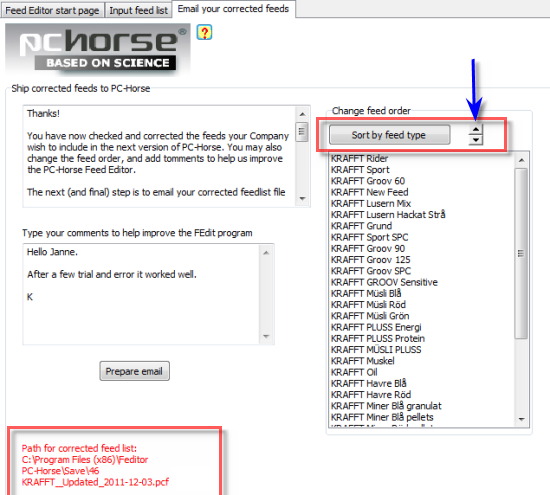
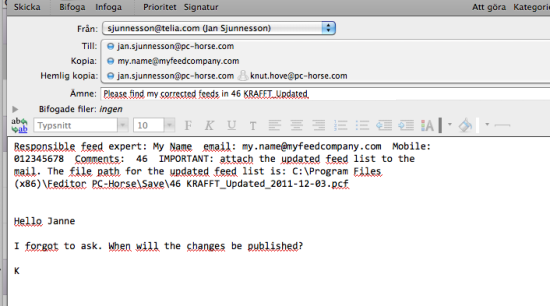
19. Send the list back to your contactperson at PC-Horse by clicking the button "Prepare E-mail". In your email client you may give us additional information.
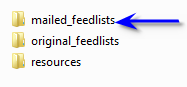
Don´t forget to attach the feedlist to the mail. It is saved here:
Your updated feedlist will be published within a week. Thereby avaiable to all new downloads and paged in alla active programs when opened.
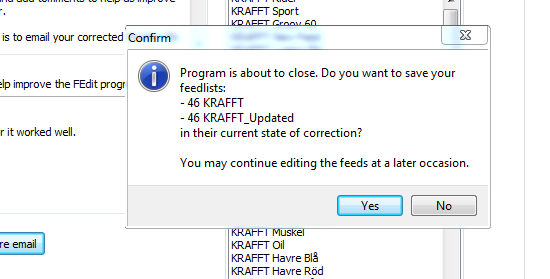
20. Whenever you finish editing your feedlists they are saved in the present state of correcting if you choose "Yes" You may come back and edit further at another time. The newly created feedlist will have "_Updated" added to it´s name and stamped with todays date.